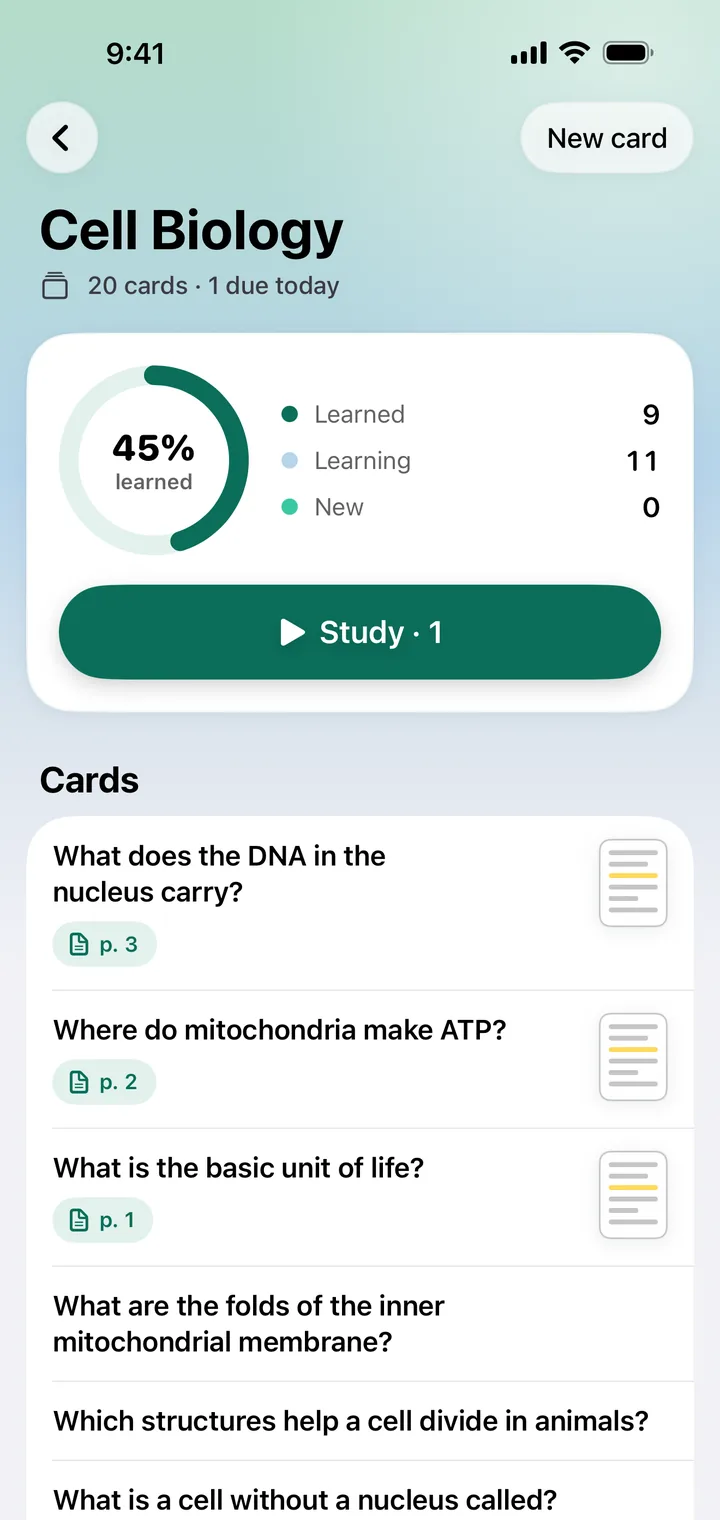

Open the photographed page
Tap the page link on a card made from a photo. Stickdeck opens the page and highlights the sentence when it can find it.
Photograph a printed page or paste your notes into Stickdeck. AI drafts questions and answers for you to check before saving. On a card made from a photo, tap the page link to see the original.

Open Add material. Tap Photo to take a picture of a printed page or choose one from your library. If your notes are already typed, tap Text and paste them.
Read each question and answer alongside your notes. AI can make mistakes, so check that each answer says what your notes say.
Edit a question or answer that needs work. Remove any cards you don't want to study, then save the rest.
Tap the page link on a card made from a photo. Stickdeck opens the page and highlights the sentence when it can find it.
If you pasted your notes, keep the original text handy for comparison. These cards have no page link.
During draft review, this label means Stickdeck couldn't find the card's quote in your notes. Read the surrounding passage to check the answer.
Choose one point from your notes. Take the line “The quiz covers chapters 3 and 4.”
Ask for the detail you want to remember. On the front of the card, write “Which chapters does the quiz cover?”
Use the note to answer the question. For this card, the back reads “Chapters 3 and 4.”
Stickdeck needs an internet connection to generate cards with AI. Once the cards are saved, you can study and edit them offline.
Yes. Open Add material, tap Photo and choose the image from your library. A photo of printed text works best.
Compare the answer with your notes while you're reviewing the drafts. You can correct the answer or remove the card before saving.
You can try turning a photo of your handwritten notes into cards. Handwriting support is in beta, and photos of printed text give the best results.
Yes. Copy the passage you want to study and paste it into Stickdeck. The app drafts cards from the text you provide.
Choose pages from a PDF to make cards, or see how Stickdeck schedules reviews for the cards you've saved.